CSS Positioning
CSS positioning properties can often be difficult to understand. In this blog post, I will explain it as simply as possible.
The first thing to note is that all elements have a default position value of 'static'. And thus a bunch of elements will appear in the same order as they are in the HTML.
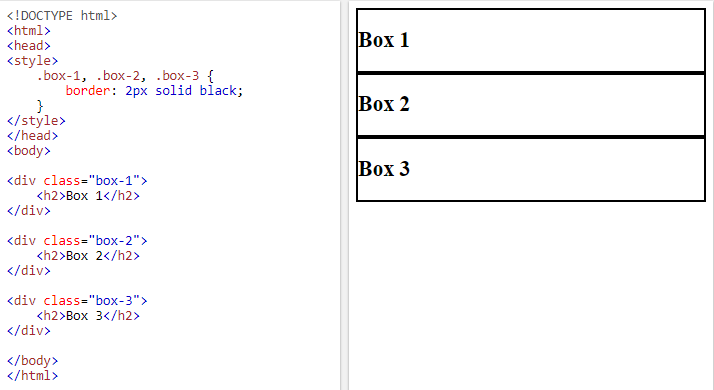
These are three divs. They appear in the same order as in the HTML; top to bottom. The result is the same whether you add position: static to each div or just leave it out.
Relative
An element with position: relative is placed relative to its original position. On its own, it acts like position: static, and you will not see any changes.
However, when you also specify some kind of horizontal and/or vertical spacing, such as left: 20px or top: 20px, the element will move while retaining the original flow of the page, including the element's original position.
In both images below, position: relative is applied to box 2.
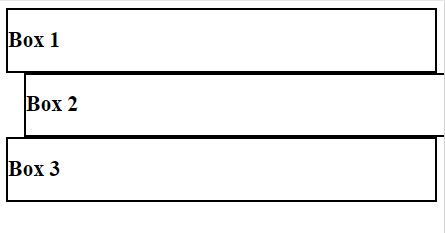
left: 20px applied to Box 2.
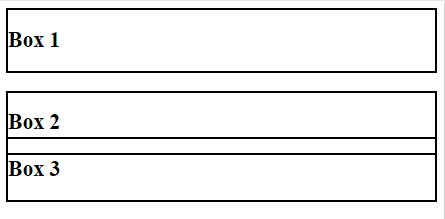
top: 20px applied to Box 2.
As you can see from the two figures, a relative element can be moved anywhere without affecting the positioning of the other two boxes, which both seem to pretend that Box 2 is in its original place.
Absolute
The element is positioned relative to its first positioned ancestor element, meaning the ancestor element must be positioned in some way (eg. relative, or absolute). Otherwise, positioned relative to the page itself, ie. the HTML element.
Applying this removes the element from the flow of the page, and allows the element to be positioned anywhere.
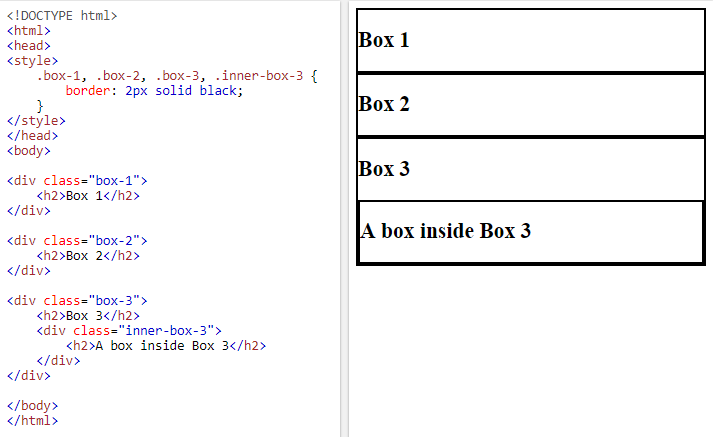
No absolute positioning applied. Note that the box inside Box 3 is a child element of Box 3.
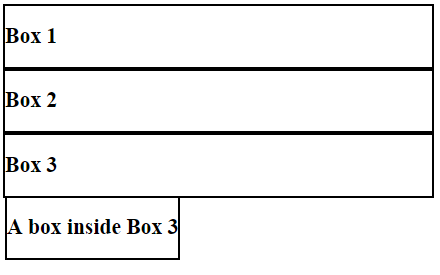
position: absolute applied to the child box inside Box 3. It dissociates from its parent element, going outside it.
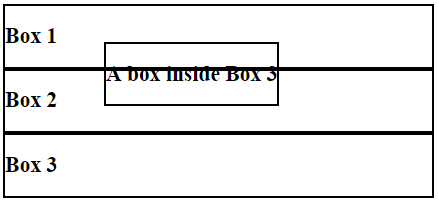
position: absolute, left: 120px and top: 50px applied to the child box inside Box 3.
As you can see in the second picture, the child box reads the top positioning as the top of the page rather than the top of its parent element, Box 3. This is because there is no kind of positioning applied to Box 3, therefore the child box is relative to the whole page.
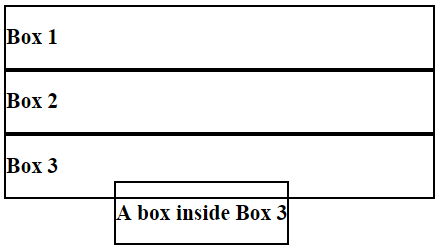
Add position: absolute to Box 3, and then the child box is now below it.
Fixed
With position: fixed, the positioning of an element is relative to the viewport. This means that the element will stay in the same place no matter what, whether the page is scrolled or the screen is resized; the element is completely removed from the flow of the page.
For example, the header on this page saying 'Richard's Blog' never moves even when scrolled or resized, because it has position: fixed.
Let's take a look at the YouTube homepage.

YouTube home page at full screen size and scrolled to top. Notice the header and the sidebar.

The page is scrolled down a bit, and you can see the header and the sidebar are still in their exact same position, because they have position: fixed.

The page is resized, and the header remains.